You can replace the user interface – the launcher – on Android TV and Google TV boxes, and customize it to your liking. A bonus is that you get rid of the growing number of ads.
It is not difficult and it does not cost a dime.
In the past, you had to jump through hoops to change the user interface, but today all it takes is downloading a free app from the app store and adjusting a few settings.
How to do it
FlatpanelsHD is using Projectivy Launcher as an example, one of the most popular launchers for replacing the interface on Android TV and Google TV devices. There are other launchers available if you want to explore your options.
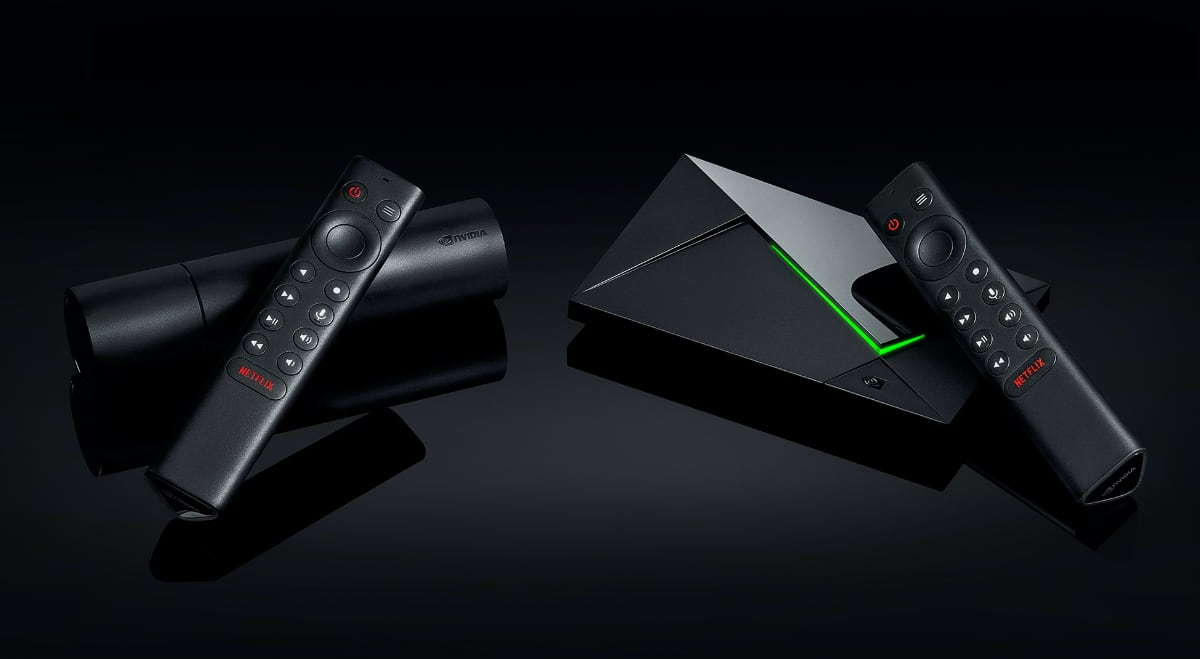
We installed Projectivy Launcher on the Google TV streamer, but it works the same way on boxes like Nvidia Shield, Chromecast, Thomson, Nokia, Xiaomi etc.
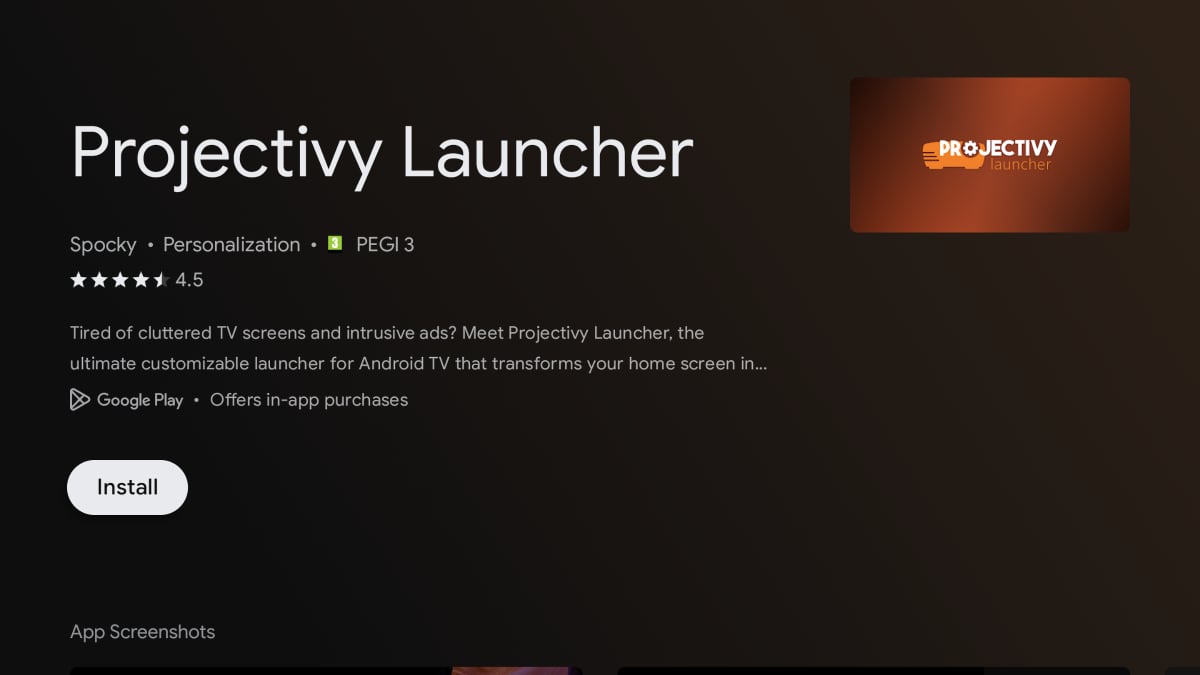
Projectivy Launcher is available as a free app from the Google Play Store – no sideloading required. Photo: FlatpanelsHD
How to get started:
- Power on your Android TV or Google TV box and open the Google Play Store.
- Search for 'Projectivy Launcher' and install the app. It is free.
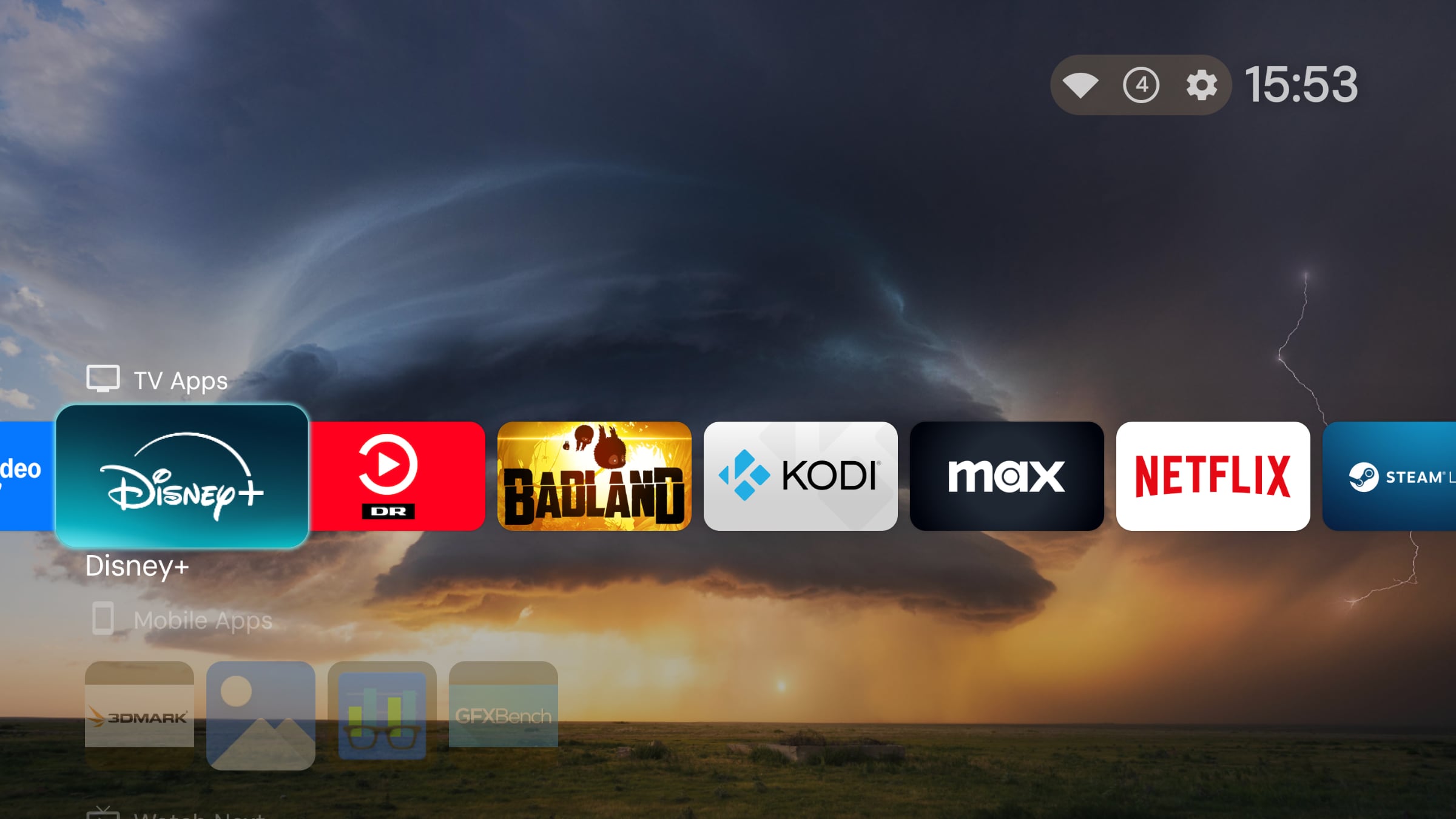
- Open Projectivy Launcher, which will now load your new user interface as a replacement for Google TV. You can view your installed apps, rearrange them, and of course install new apps. You can also customize the interface in various ways.
- If you like what you see, you can let Projectivy Launcher take over from Google TV's launcher. When Projectivy Launcher is open, go to Settings -> Projectivy Launcher Settings -> General -> Override current launcher. You may need to grant Projectivy Launcher permissions under 'Accessibility' first.
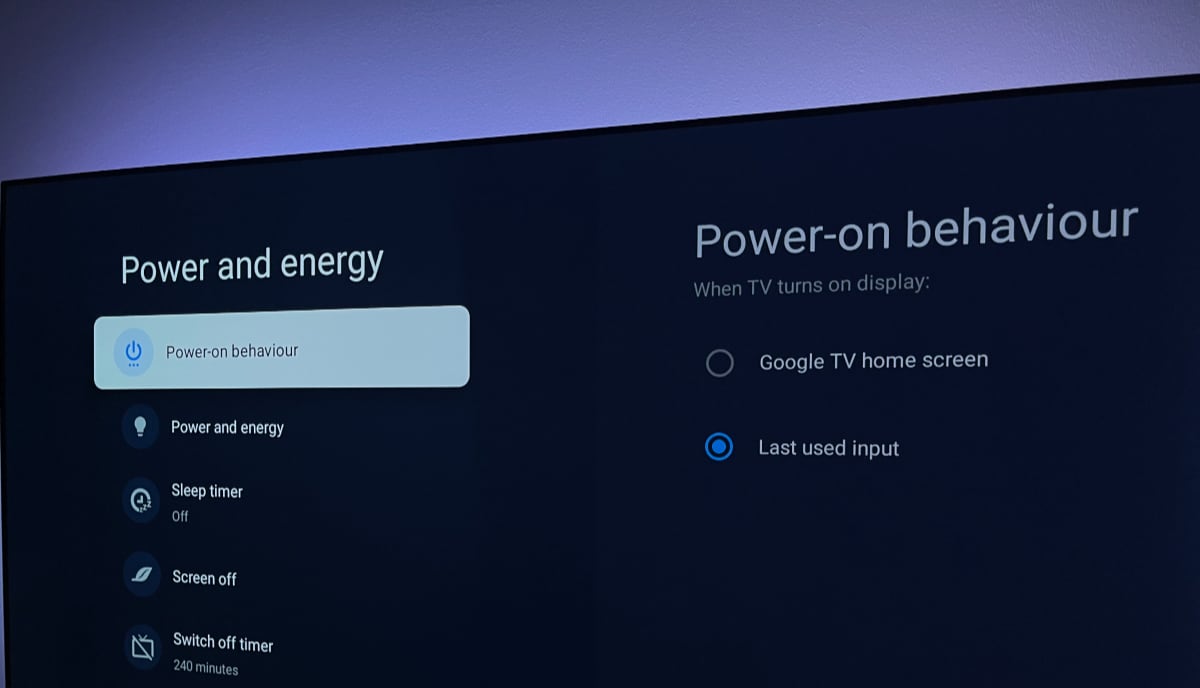
Projectivy Launcher is now the default interface on your device every time you press the Home button or wake the device from standby. It should remain that way, although Google is known to try and push its devices back to the default Google TV launcher – FlatpanelsHD did not experience this during our test period.
You will notice that the large ads in the interface are gone. Also gone are the many "recommendations" (also ads) for new movies and shows from Google and its paying partners. Your apps work as usual.

This is what Projectivy Launcher looks like by default, but you can customize it. Photo: FlatpanelsHD
Add new content rows
In Projectivy Launcher, you still have your 'Watch Next' row, where content from supported streaming services appears, so you can quickly resume watching your TV series.
If you want, you can add additional content rows from Amazon Prime Video, Apple TV+, Disney+ etc. This is done under Settings -> Edit channels -> select the service and toggle to 'Visible'.
If you dive deeper into the settings, you will find many other customization options, such as icon size and layout, background wallpaper, parental controls, and more. You can also set a specific app to launch after standby. Try to experiment.
Have you already installed a custom launcher on your Google TV device? Share your experience in the comments section.
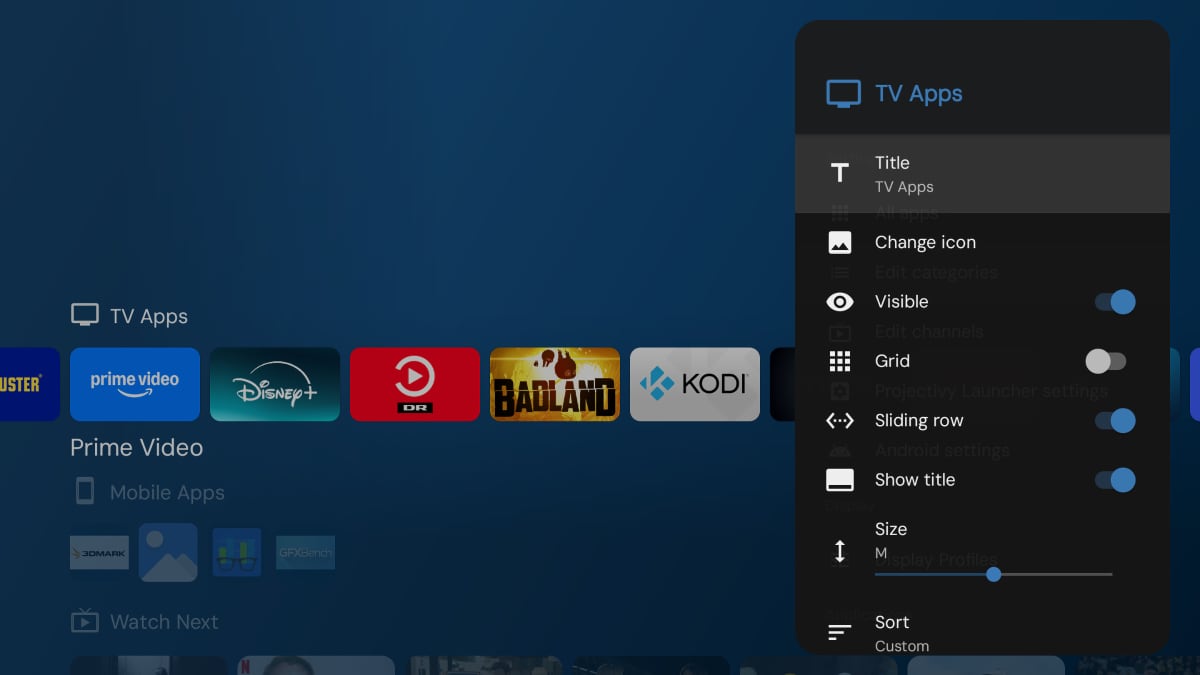
Projectivy Launcher offers plenty of customization options. Here you can see how to tweak the 'TV Apps' row. Photo: FlatpanelsHD