Sony has its own app, but there are alternatives that FlatpanelsHD has had better luck with, enabling you to play your PlayStation games in any room of the house over the network – or on the go via the internet.
Sony's official solution is called PS Remote Play. It is a free app available on a few platforms such as Android TV (Google TV) and iOS. For unknown reasons, the app is not available on tvOS (Apple TV) and Smart TV platforms.
The concept is simple: You PlayStation 5 or PlayStation 4 console mirrors its screen which is streamed over your local network or the internet to a device with the app is installed and a controller connected. In other words, you must own a PlayStation console and have the games you want to play installed.
The alternative: PXPlay
In our search for a better solution, we found PXPlay. It is an app similar to PS Remote Play, and PXPlay uses PlayStation's official Remote Play protocol to stream games to other TVs.
 The PXPlay app looks rough, but that hardly matters since you are mostly in the PlayStation menu. Photo: FlatpanelsHD
How it works
To get started, download the PXPlay app from Google Play here or Apple App Store here. Then follow these steps:
- Connect a controller wirelessly to Apple TV or Google TV via Bluetooth, such as a Sony DualSense, Xbox or Wii controller.
- Turn on your PS4 or PS5 and go to Settings -> System -> Remote Play -> Enable.
- In this menu, select 'Pair Device'. A code will appear on your screen.
- Open the PXPlay app on Apple TV, Google TV or your mobile device and press 'Register new console', choose PS4 or PS5, and enter the code. Yo will also need to enter your PSN username to enable streaming over the internet when away from home. This only needs to be done once per device.
- Go back to 'Home' in PXPlay and press 'Local connect' (home network) or 'Remote connect' (internet)
You will now see the PlayStation interface on your Apple TV or Google TV, and you can control it using your controller. Launch any game.
Also read: Sony's DualSense can now be paired with four devices at once
Also read: Guide: How to pair PlayStation & Xbox controllers with Apple TV
In our experience, the latency is low enough for most games, though not for the most competitive ones. We enjoyed playing Astro and GTA5, for example. Latency will depend on your network conditions. The ideal setup is to use a wired network connection for both the console and Apple TV / Google TV rather than WiFi.
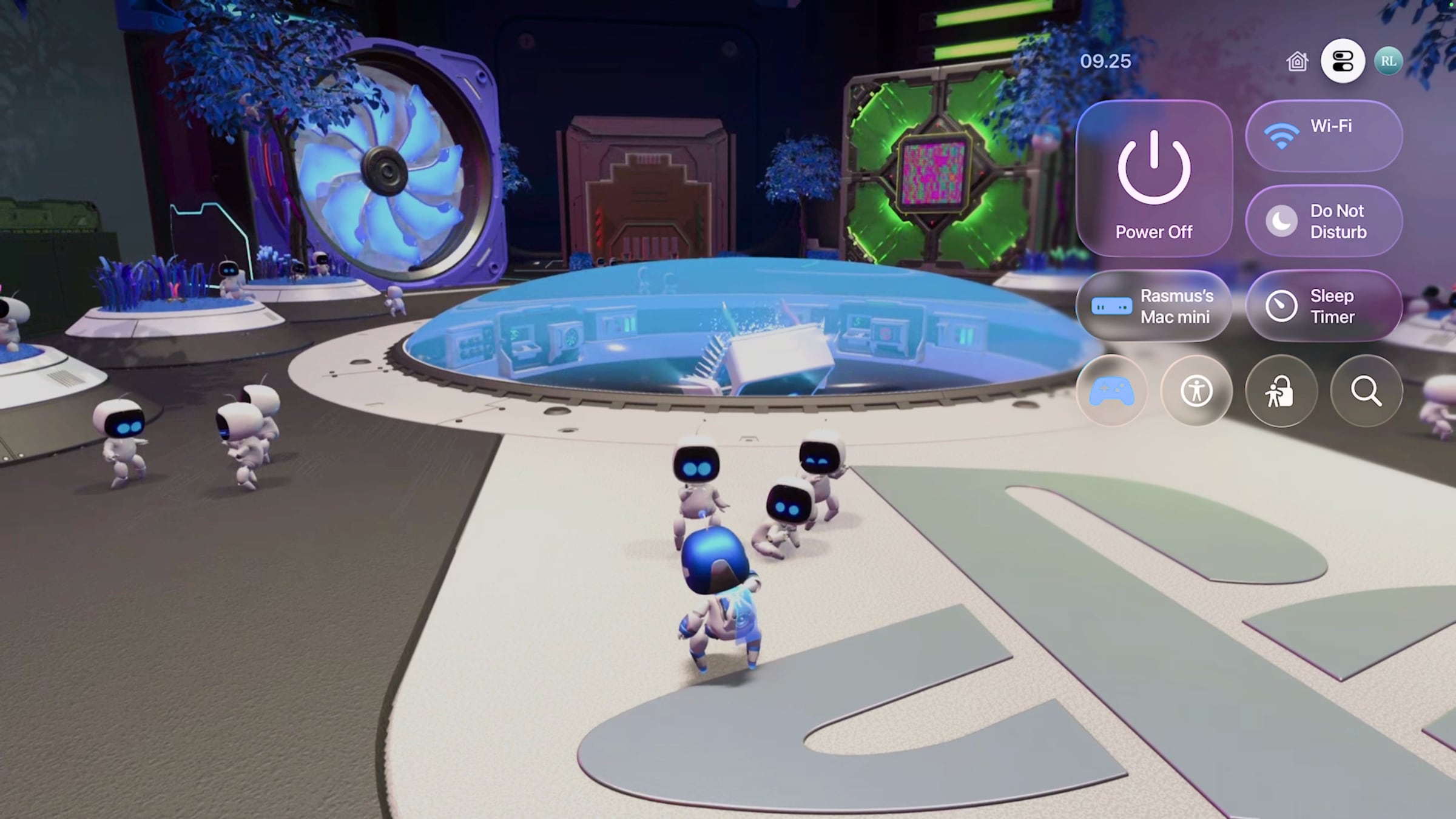
 GTA5 works well via PXPlay. The Apple TV menu on the right is only shown for illustration. Photo: FlatpanelsHD
 Astro works with PXPlay, including its many unique control methods. Photo: FlatpanelsHD
Tips, caveats, and limitations
Sony's Remote Play system supports up to 1080p (PS5 and PS4 Pro). PXPlay can upscale to 1440p and 2160p (Apple devices only). This does not increase latency notably. Similarly, the app can upscale to HDR, though it is not the game's true HDR output.
Game streaming is supported at up to 60fps, not yet 120fps, which would reduce latency. If your Apple TV or Google TV is set to 50Hz, you should switch to 60Hz as all console games run at 60Hz. The PXPlay app does not support automatic refresh rate matching.
PXPlay can wake the console and put it back into standby afterward. When the console wakes via Remote Play, the TV connected through HDMI remains off. You can switch PlayStation users too. However, Remote Play takes over the console – it can only be used in one place at a time.
We mainly used Sony's DualSense to compare the gameplay experience with the console itself, but everything worked fine with the Xbox Series controller too. You can remap buttons from PXPlay's main menu. Vibration worked on both controllers, though it does not feel like the more refined haptic feedback of the DualSense. The DualSense's touchpad and motion sensor also worked as expected in Astro.
Spatial Audio with AirPods works on iPhone and iPad but, for some reason not on Apple TV. However, it is not true Spatial Audio with immersive surround, but simply dynamic head tracking, so sounds shift slightly when you move your head. This could use improvement but as far as we know PS5 does not output surround or Dolby Atmos through Remote Play at this time.
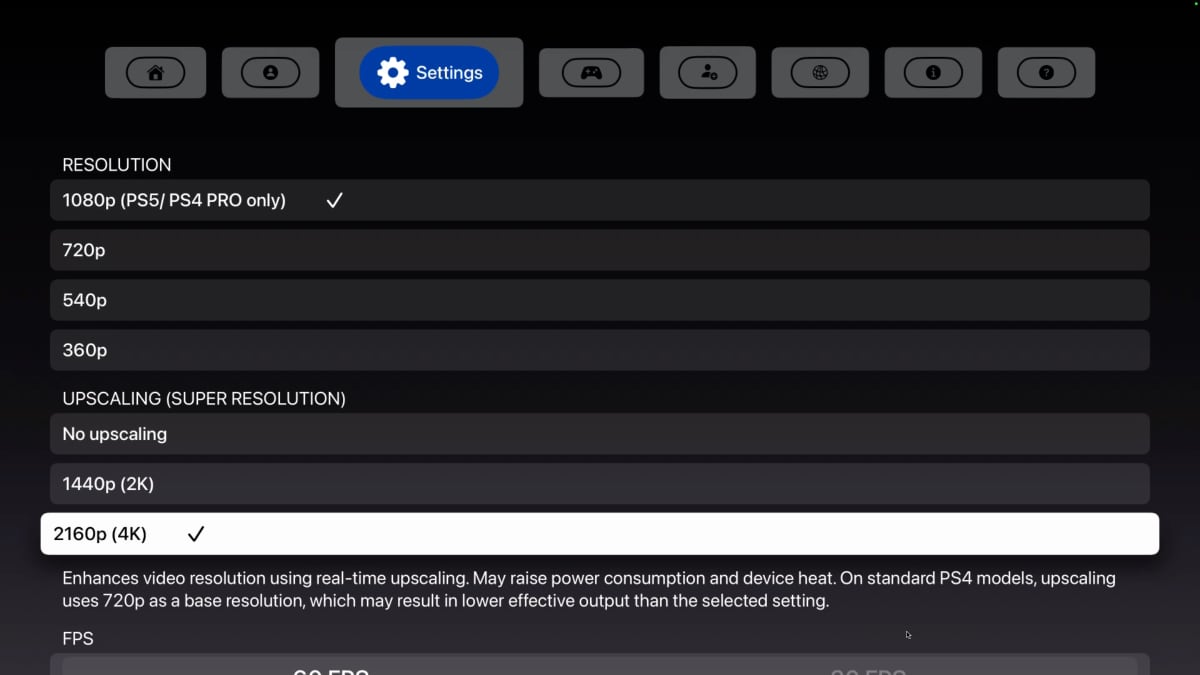 PXPlay offers various settings options. Photo: FlatpanelsHD