Apple TV does not offer optimal parental controls, but it is possible to set restrictions on movies, TV shows, music, apps and settings to help keep children in check.
In an ideal world, tvOS on Apple TV would offer the same parental controls as iPhone and iPad, allowing you to set time limits, app restrictions either by group or individually, and much more.
This is not currently implemented in tvOS, likely because Apple TV is a multi-user device where everyone in the household can have their own user profile and switch between them easily.
Use tvOS restrictions
However, you can still set restrictions on how children use the Apple TV in the living room or another room, and lock content behind a PIN code or authorization via another Apple device.
Here's how:
- On Apple TV, go to Settings -> General -> Restrictions -> On
- When you enable restrictions, you will be prompted to set a PIN code. Remember this code – you will need it to bypass the restrictions later.
- In the Restrictions menu, scroll down and set the limits you want.
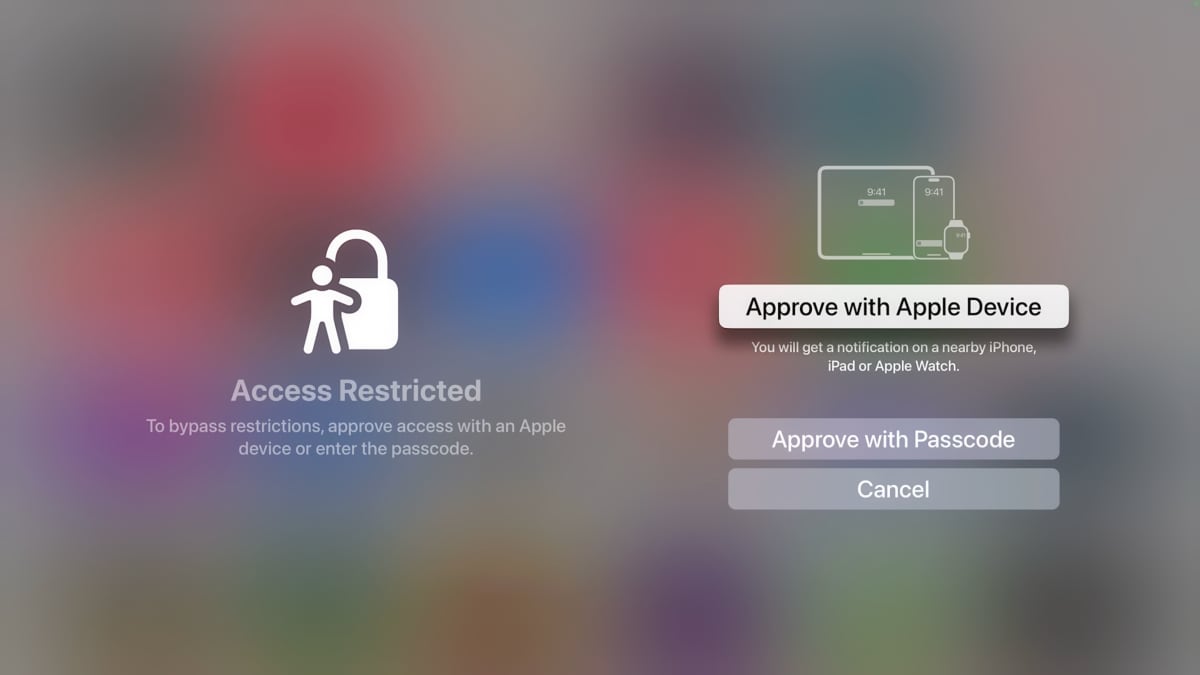
You see this screen when trying to access content on Apple TV that falls under a restriction. Photo: FlatpanelsHD
Example of setting up restrictions:
- Under 'Bypass Restrictions with Device', choose that only the parents' Apple ID can override them. That means only iPhones, iPads and Apple Watches signed in with this Apple ID can bypass restrictions for content or apps. Alternatively, the PIN code can be entered using the remote.
- Under 'Allowed Content', set 'Ratings For' to follow your region's parental guidance standard, and choose, for example, '7' for 'Movies' and 'TV Shows'. This means that content not suitable for children under 7 will no longer appear in the Apple TV app's menus. It can still be found through search, but will trigger the restrictions screen shown above.
- Under 'Allowed Content', select 'Clean' for 'Music and Podcasts' to block songs with explicit lyrics, and choose 'Block' under 'Music Videos' so they cannot be viewed or searched in the Apple Music app.
- Under 'Apps', select for example '9+', so children can only open apps and games rated 9 and up. These apps will not open. For example, the YouTube app will be restricted, but the kids can open Disney+ (where a PIN can be set on adult profiles) and the Apple TV app (which will only highlight content suitable for ages 7 and under, as configured above). Kids will not be able to open apps that are developed by a lowest common denominator approach, i.e. universal apps that lack proper child restrictions. For games, the kids can open Sneaky Sasquatch (4+) but not Playdead's INSIDE (12+), for example.
- Under 'Allow Changes', choose 'Restrict' for 'AirPlay Settings' and also set a PIN for AirPlay under Settings -> AirPlay -> Access -> Require Password, so kids cannot find content on another device and AirPlay it to Apple TV.
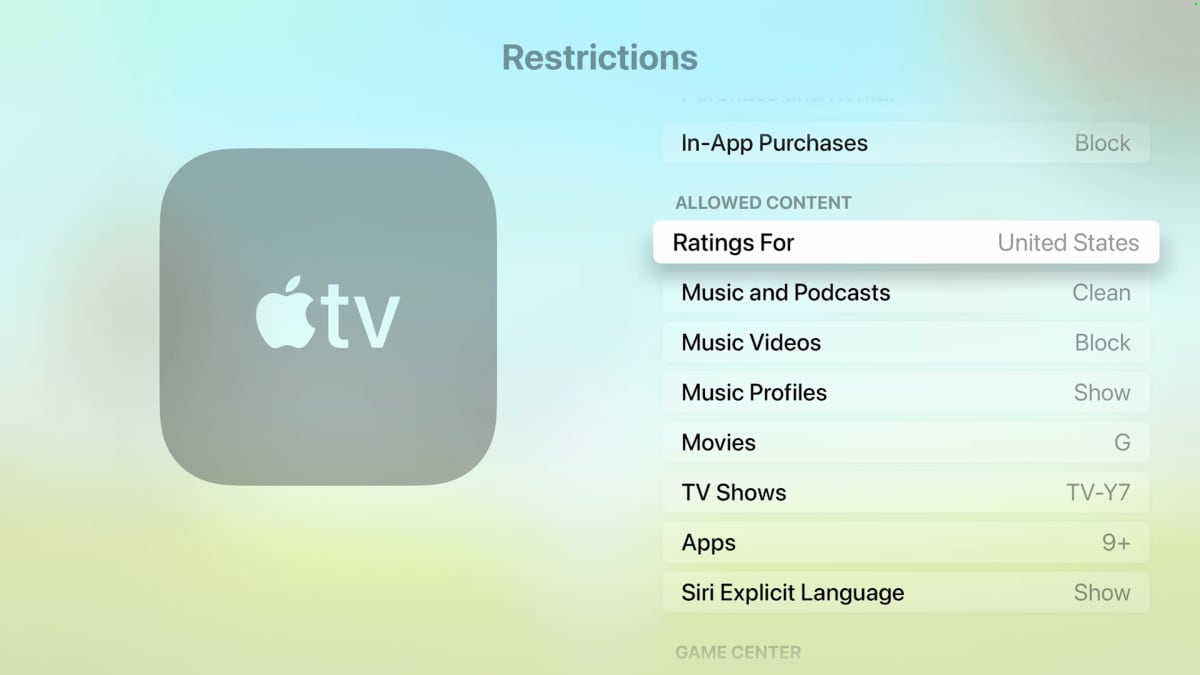
Here is an example of what a parental restriction setup might look like. Photo: FlatpanelsHD
Not an ideal solution
You now have restrictions in place to manage your children's usage – especially in apps like YouTube and other social video platforms, where the companies behind them do very little to protect children.
However, it will affect some other apps too because developers have not implemented Apple's APIs for child protection, like for example Disney+ has. Such developers should prioritize creating proper (native) apps and taking advantage of Apple's development tools. Over time, stronger parental control features will likely arrive in tvOS, so this is a challenge that needs to be addressed eventually by alle app developers.
Apple also bears responsibility. The restrictions generally work, but they can be frustrating when adults want to watch a movie in the living room. A more ideal solution would be to link restrictions to the Apple ID profiles set up in the Apple TV's Control Center. Switching to a parent's profile could then require a PIN code or iPhone/iPad authentication.