Whether you use Android, iPhone or a dedicated camera, there are easier ways than connecting a PC or using Chromecast and AirPlay. Here is FlatpanelsHD' guide.
Modern TV platforms provide access to video streaming and music, but they are increasingly embracing other media types too, such as photos and games.
The easiest approach is to match your TV platform with the operating system on your smartphone, but there are also other methods, and we are now seeing the early signs of Google Photos making its way onto Smart TVs that are not running Google TV.
Photos via AirPlay and Google Cast
Traditionally, many people have used a PC to show holiday photos to friends and family. perhaps burning them onto CDs back in the era of physical media, or connecting a laptop to the TV via HDMI in more recent times.
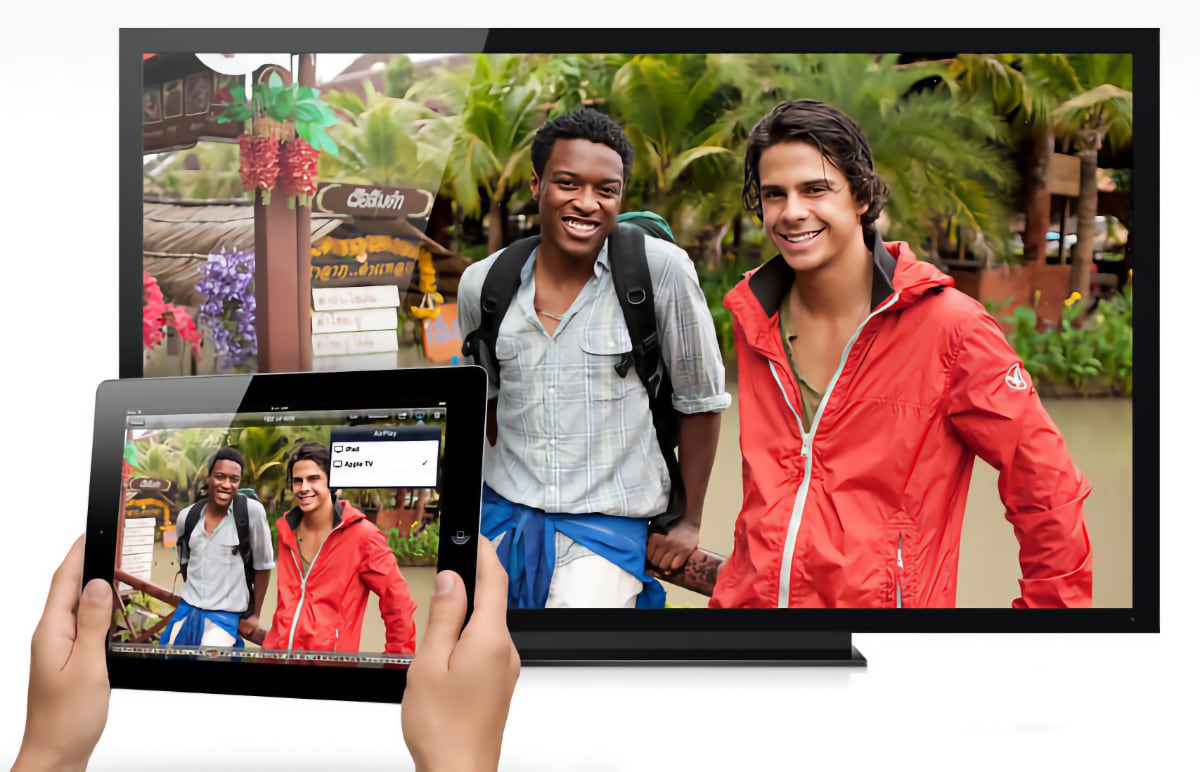
You can do the same today without any cables by using screen mirroring from a smartphone, tablet or PC via Google Cast, AirPlay and Miracast, or by using DLNA to share a folder from a PC.
One downside of screen mirroring is that guests also see everything else on your smartphone screen, including any photos that did not turn out well or are not suitable for sharing – unless you have sorted the photo folder in advance.
AirPlay and Google Cast are a quick and wireless – but unstructured – way to show holiday photos on the TV
Beyond screen mirroring, both AirPlay and Google Cast can also send only the media content to the TV, so guests do not see everything on your smartphone screen. This is done by navigating to a photo or video and tapping the cast icon – just like on streaming services.
On your smartphone you can search for, say, 'France' and '2026' in advance to show only those photos. You can then swipe between photos on your phone and the TV screen will follow along.
Photos app on Apple TV
A more recent option is dedicated photo apps for the TV. Apple has Apple Photos and Google has Google Photos – the two native apps for managing the camera roll on iPhone/iPad and Android respectively. Both have a lot of automation built in so you do not need to manually upload and organize everything.
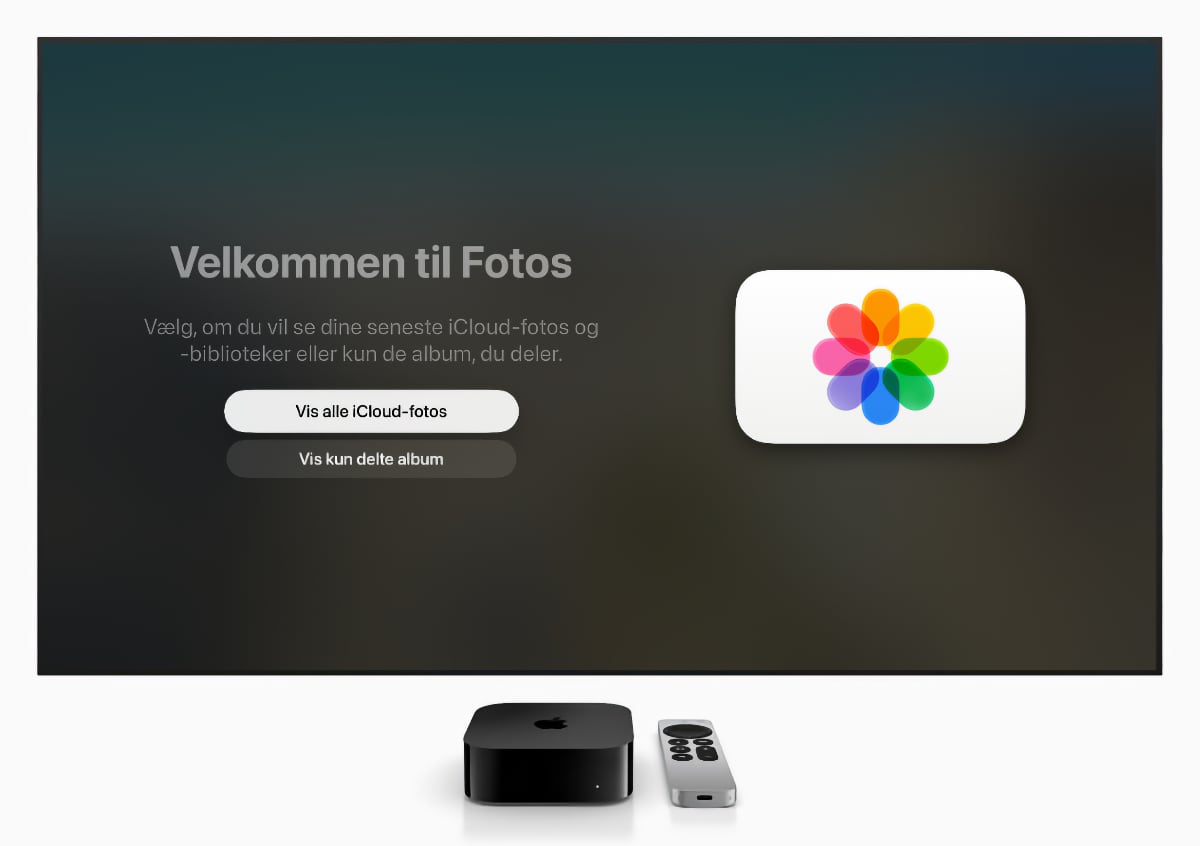
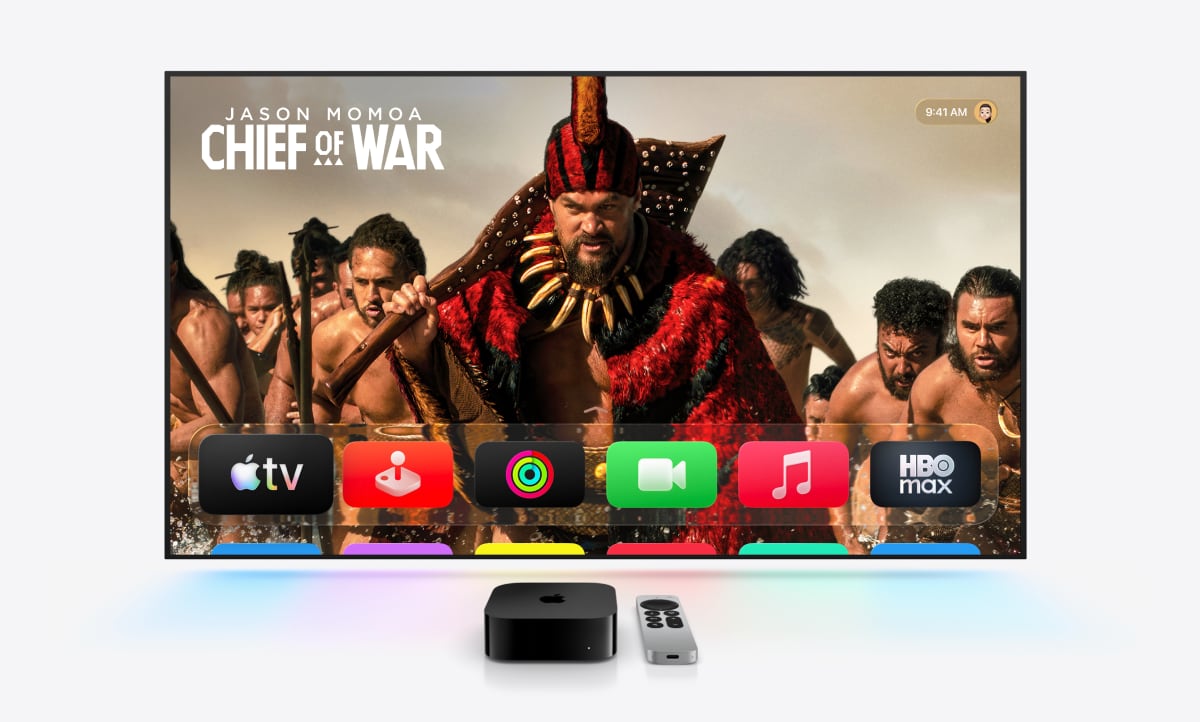
On Apple TV, you simply open the Photos app, which pulls photos and videos from iCloud – just like on your iPhone – presented in a clean visual interface. You can easily set up multiple users on Apple TV so each person can view their own photos by switching profiles from the control center. This is currently by far the easiest way to view your own photos and videos on the TV screen if you are an Apple user.
Photos can also be set to run as screensavers when Apple TV 4K is not in use, so you do not have to actively go in and do anything each time you want photos displayed.
There is a dedicated Photos app on Apple TV that can be set up – and restricted – in various ways
Google Photos on Google TV
All Google TVs (Sony, Philips, TCL, Nvidia, Chromecast, Google TV Streamer, etc.) have a built-in Google Photos feature, though it is not a standalone app and therefore does not offer the same freedom to browse the photo library freely.
Instead, photos can be set as screensavers – replacing the images you would otherwise see from other photographers – or you can search for photos using Google Assistant, for example from a specific location in a given year. When the Gemini AI assistant rolls out more widely on Google TV later, additional options will become available (such as a Remix feature), but for now a dedicated Google Photos app is still missing.
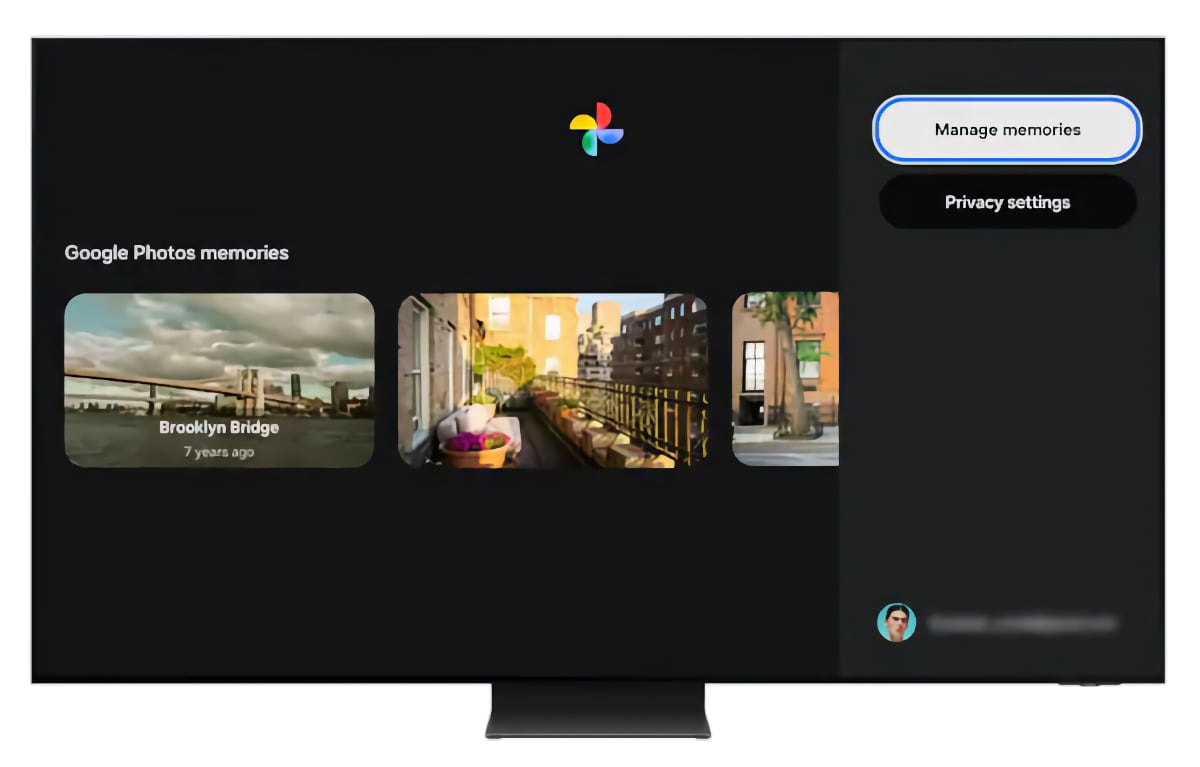
Samsung TVs are the first to get a Google Photos app – ahead of Google TV.
Google Photos on smart TVs
Samsung is the first TV maker without Google TV to get a Google Photos app. It is, however, limited to 'memories' – the short photo collages that newer Android phones can generate from your trips, people and so on. The app does not provide access to browse your full Google Photos library.
There are also third-party apps, some of which can actually connect to Google Photos and similar cloud services. Examples include Easy Photo Player for LG Smart TV (webOS), Samsung Smart TV (Tizen) and Google TV as well as Viewer for Google Photos for Apple TV.
Apps like Plex and Dropbox can also be used, but expect to spend a fair amount of time uploading and organizing content. Plex requires a media server at home such as a NAS or a PC that is always on.
Screensavers and memories on the TV
In our experience, the two best ways to display your own photos on the TV are through the screensaver feature and as 'memories'.
Screensavers start automatically when the TV is not in use, and they often surface surprising or forgotten moments. They are however best suited to everyday family use rather than occasions where you want to show specific holiday photos to other family or friends.
'Memories' are the ones newer Android phones and iPhones generate automatically – for example after a trip or on special occasions. They are collages of photos and videos that the phone edits together with background music, so you do not need to spend time managing everything yourself. You can also ask your phone to manually create other and longer memories. These work really well when shown on the TV via Apple TV 4K or Samsung TV (via the Google Photos app).
Memories can also be cast to the TV via Google Cast or AirPlay from your smartphone.
There are of course other ways to get holiday photos up on the big screen at home. What methods have worked best for you?
Sign up for FlatpanelsHD's newsletter
The latest news, in-depth articles, reviews, and exclusives in your inbox.